 Komawari
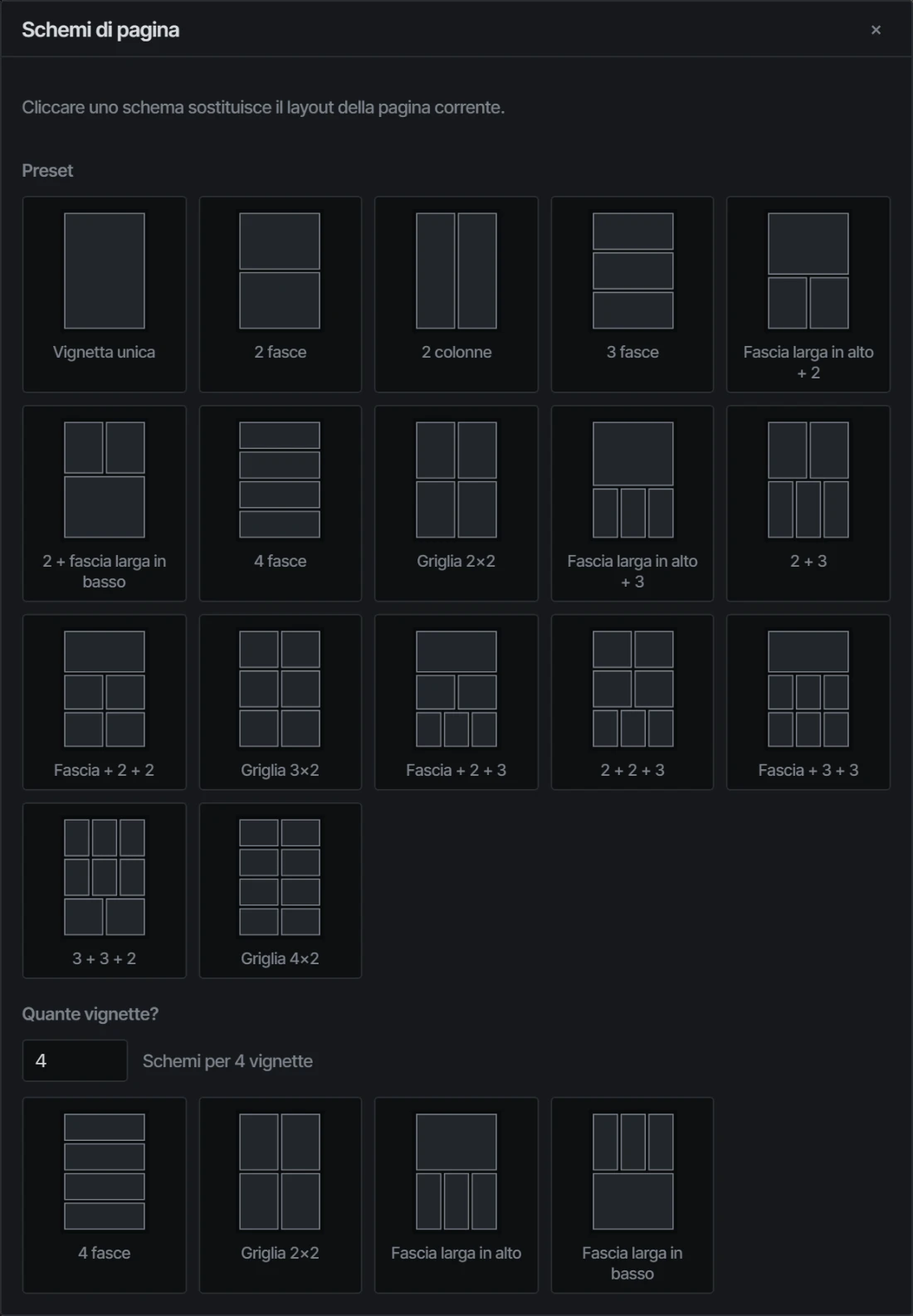
Pick a layout
A library of ready-made layouts, from one panel to eight. Or type how many you want and Komawari shows you the arrangements that fit.
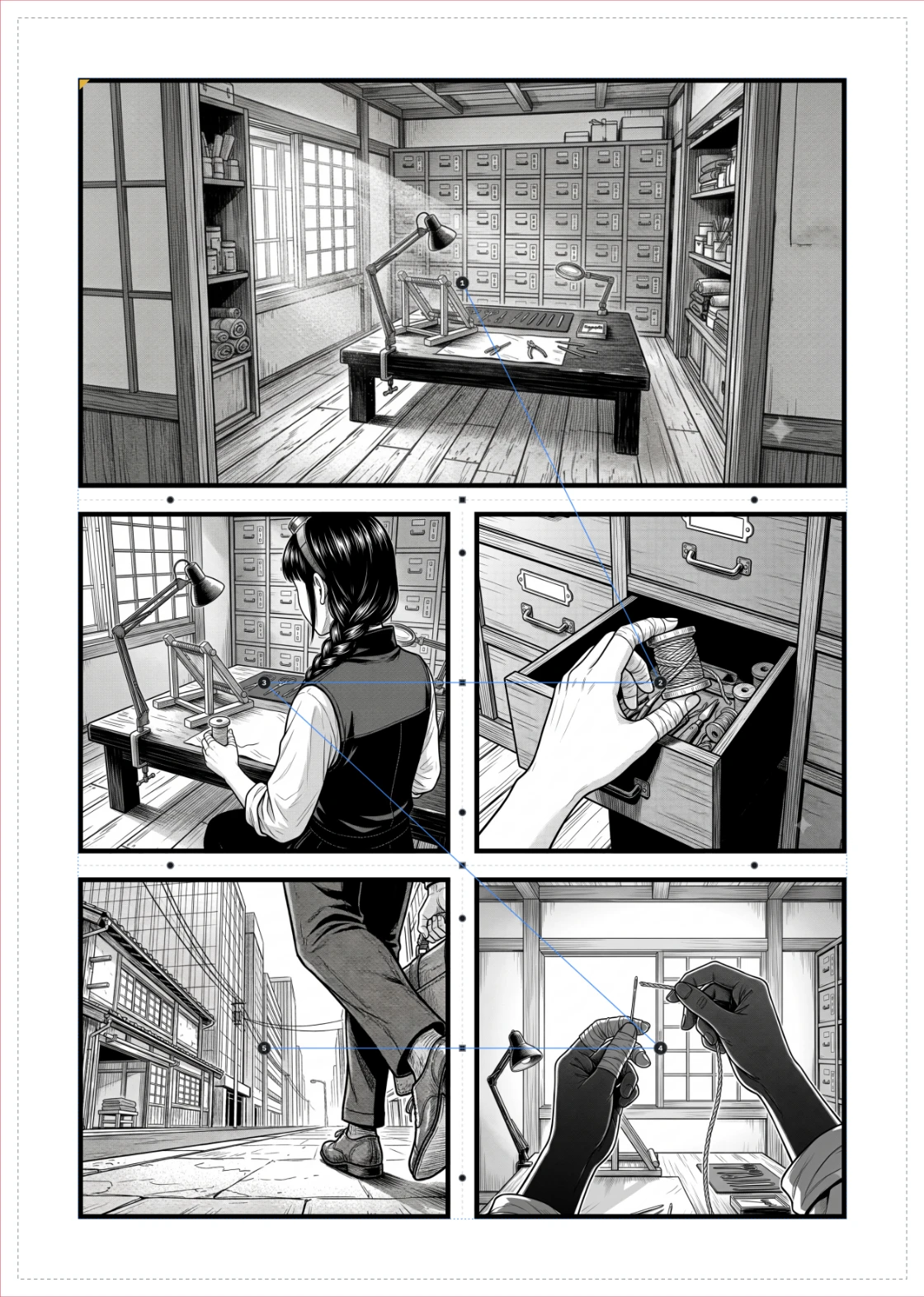
Komawari places it in reading order, right to left, and hands you a file the printer will accept.
There is no manual to study before you start. The three things you will do every day take three gestures.
A library of ready-made layouts, from one panel to eight. Or type how many you want and Komawari shows you the arrangements that fit.
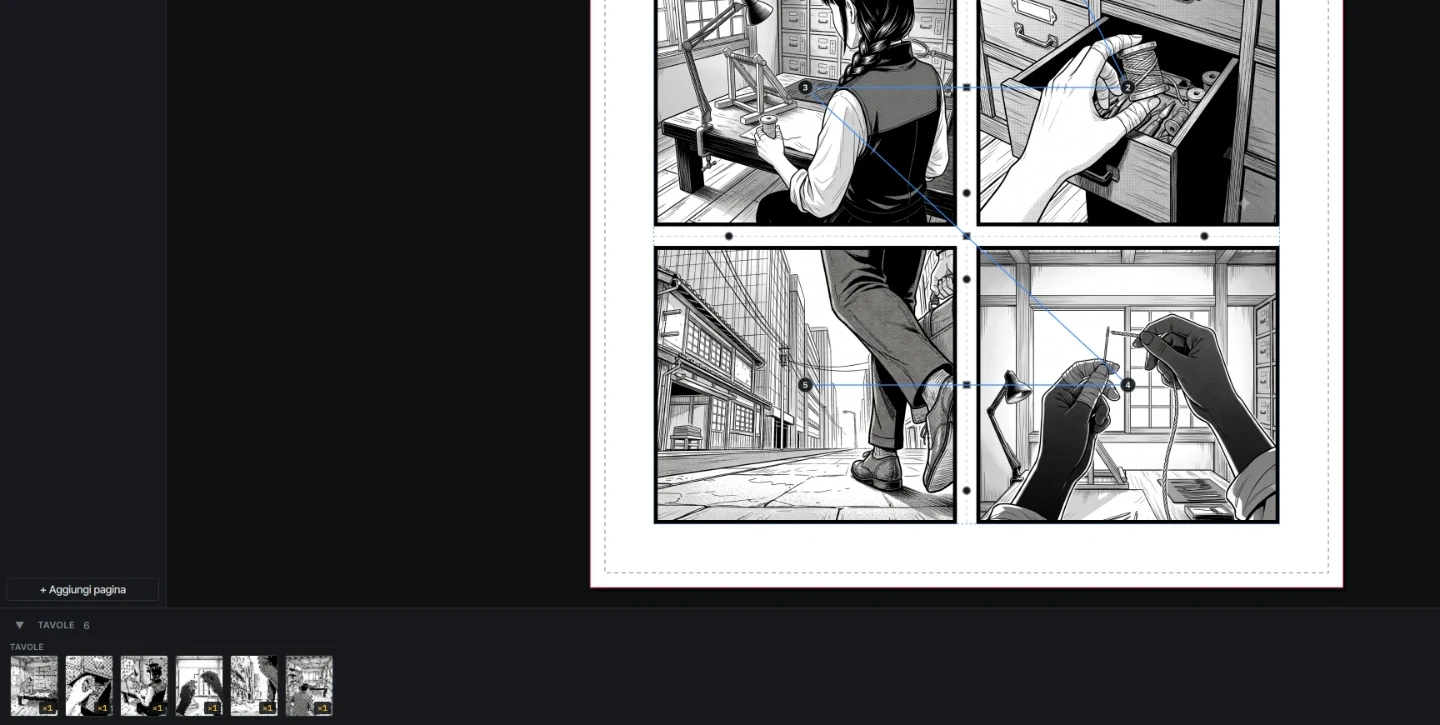
Let the files fall onto the page and they fill the empty panels in the order they are read. Nothing to assign by hand, no numbering to check.
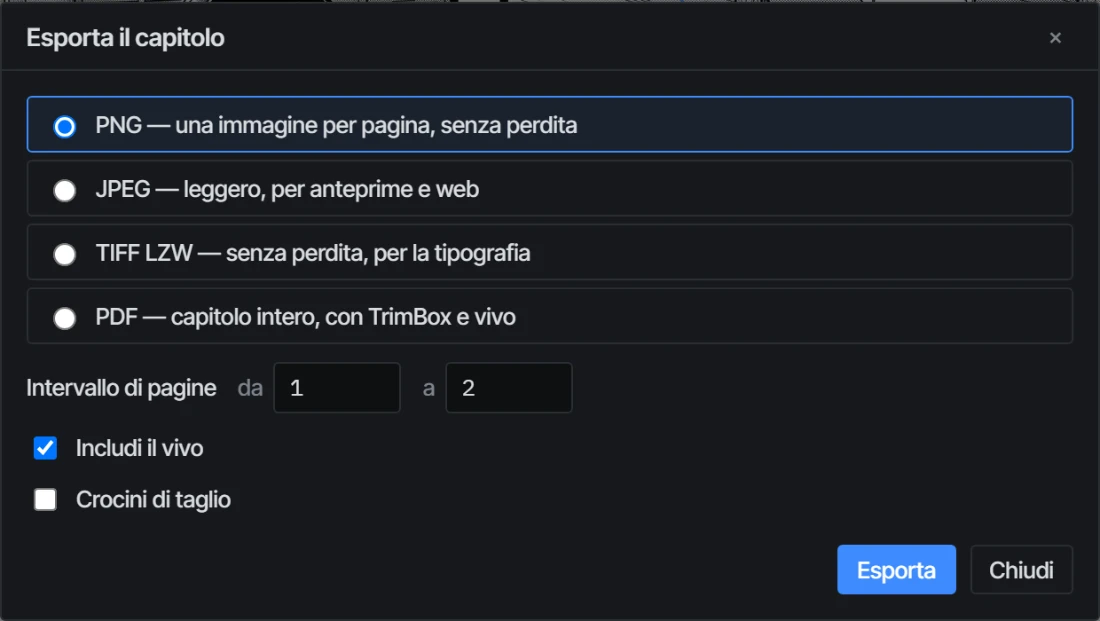
Choose the pages and the format. The file comes out with bleed and crop marks, if you need them, and the right measurements inside.
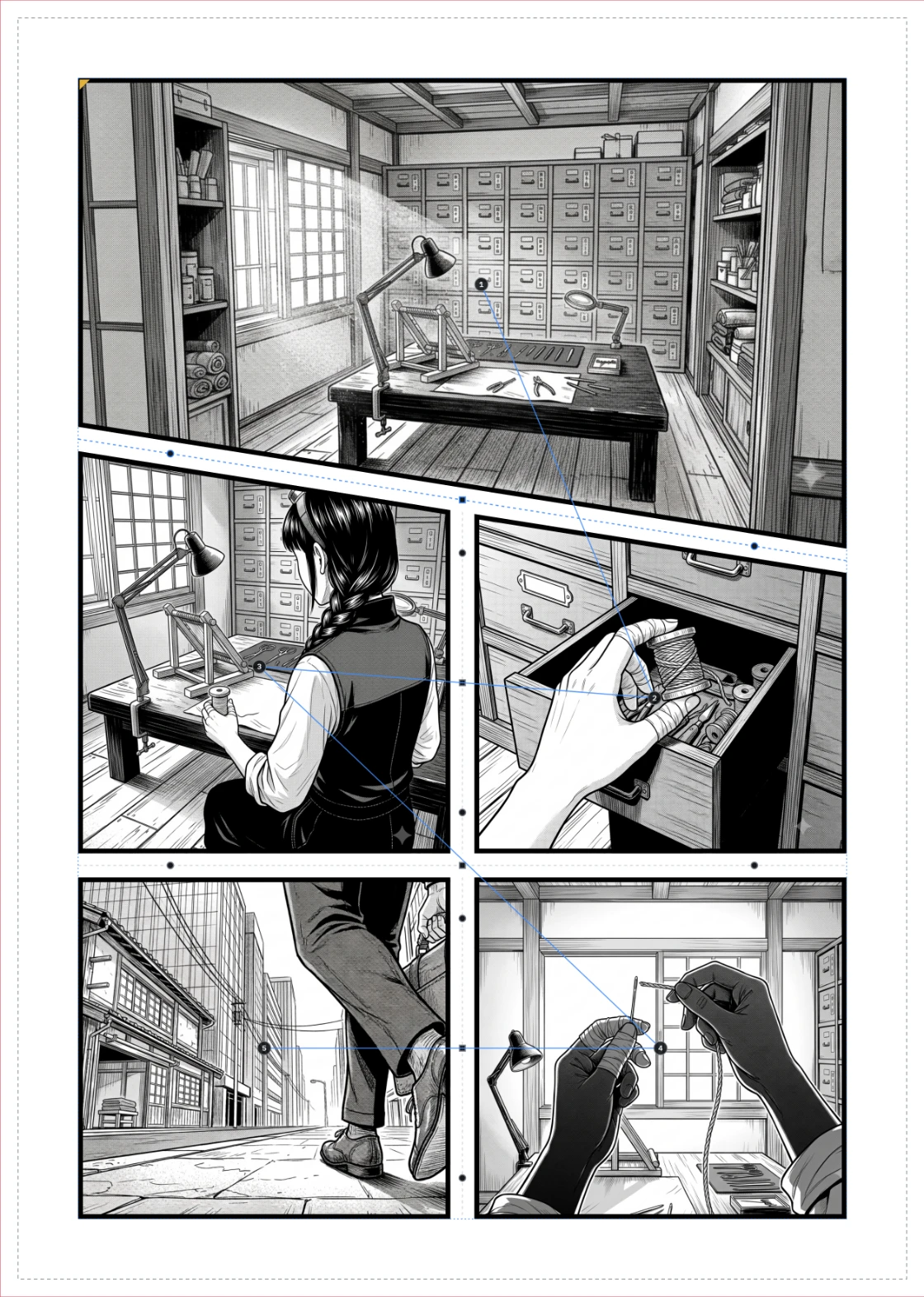
It is what separates a manga page from a western grid. Take the end of the line and rotate it: the panels on either side adjust themselves.
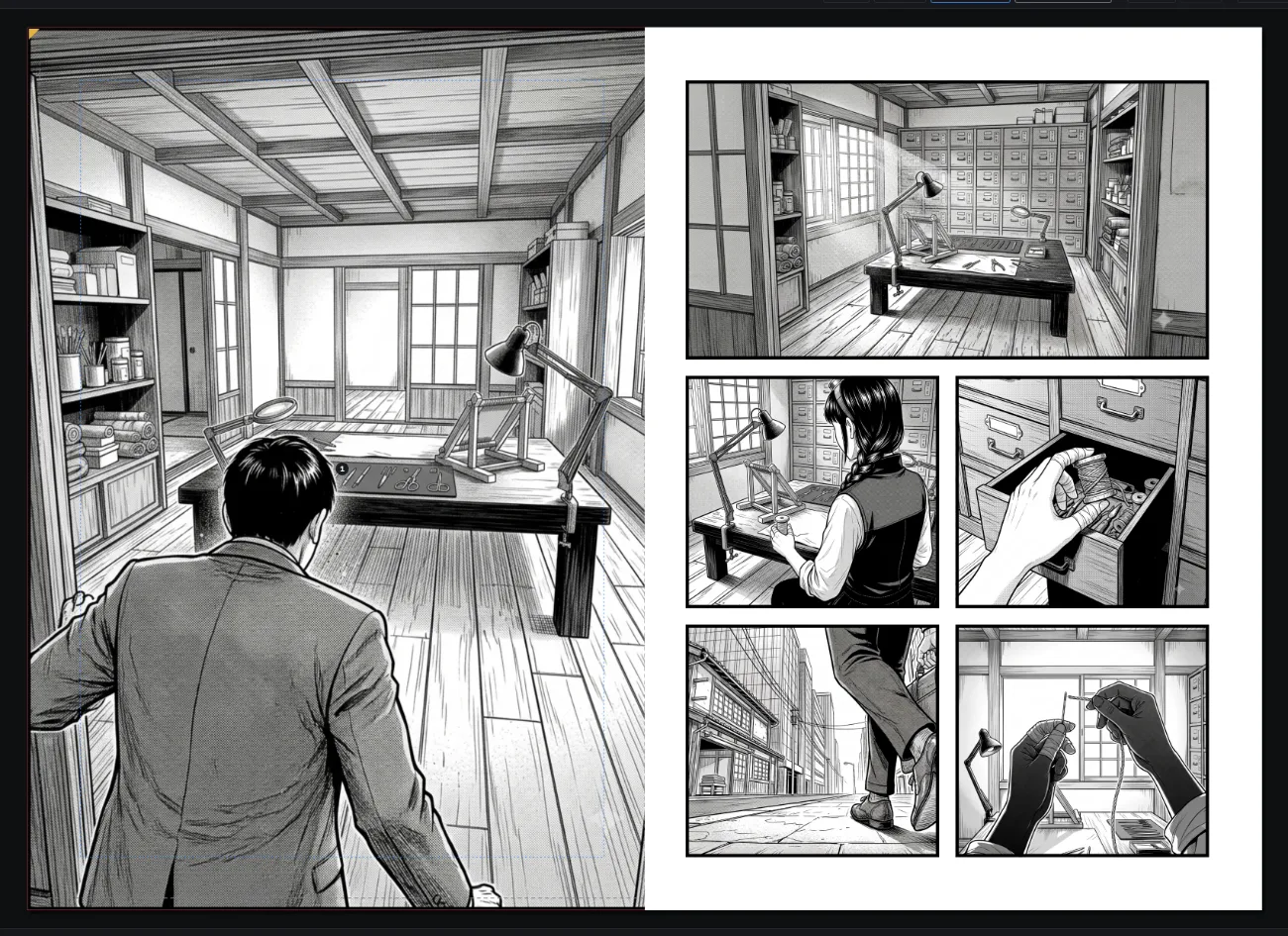
With right-hand binding the odd pages sit on the right and are read first. Komawari pairs them the right way round while you work, so you catch the panels that cross the fold now, rather than at the printer's.
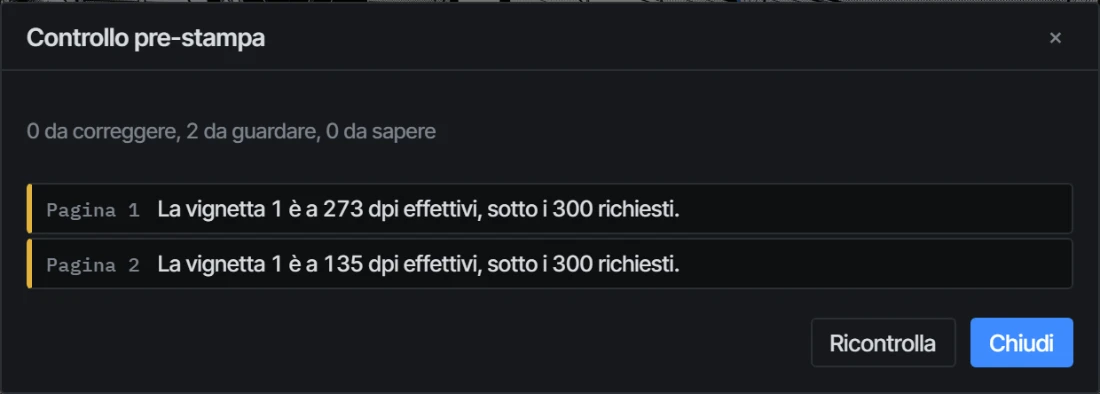
Without having to learn what bleed is, or how a trim gets declared: Komawari writes the right measurements into the file for you.
A check runs through the whole chapter and says what is worth a look: panels left empty, artwork that is no longer on the disk, drawings that will not hold up at the scale you placed them. It does not stop you: it lets you know.
Chapter_01/
├── project.json
├── assets/
│   ├── art_0001.png
│   └── art_0002.png
├── .cache/
│   └── backups/
└── export/
    └── 2026-08-08_1712/
No account, no server, no closed format you can only get out of by exporting. A project is a folder you can open, move to another disk or hand to someone else: inside are your images and a text file that lays them out.
You do not even have to remember to save. Komawari writes on its own two seconds after your last change, and keeps the last five saves for when you want to go further back than undo will take you.
In the browser you install nothing and the project lives in the page's own storage,
with a .zip export to carry it away. On the desktop you work straight
inside a folder on your disk.